

SlotForge Telemetry
Explore gearing, motors, tyres and weight, compare setups and analyse recorded lap times.
- Free
- v0.14.0
- Windows · macOS · Linux
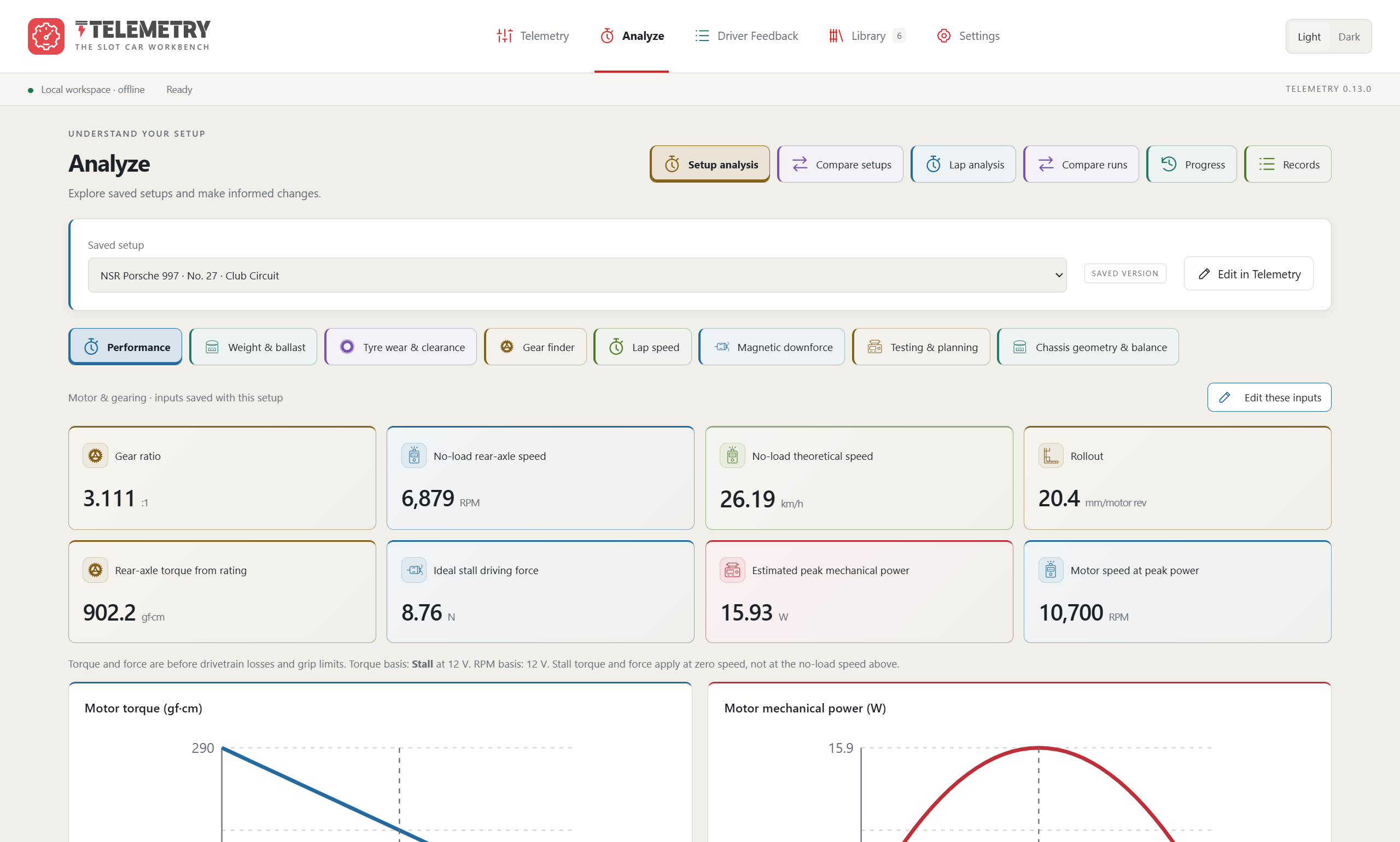
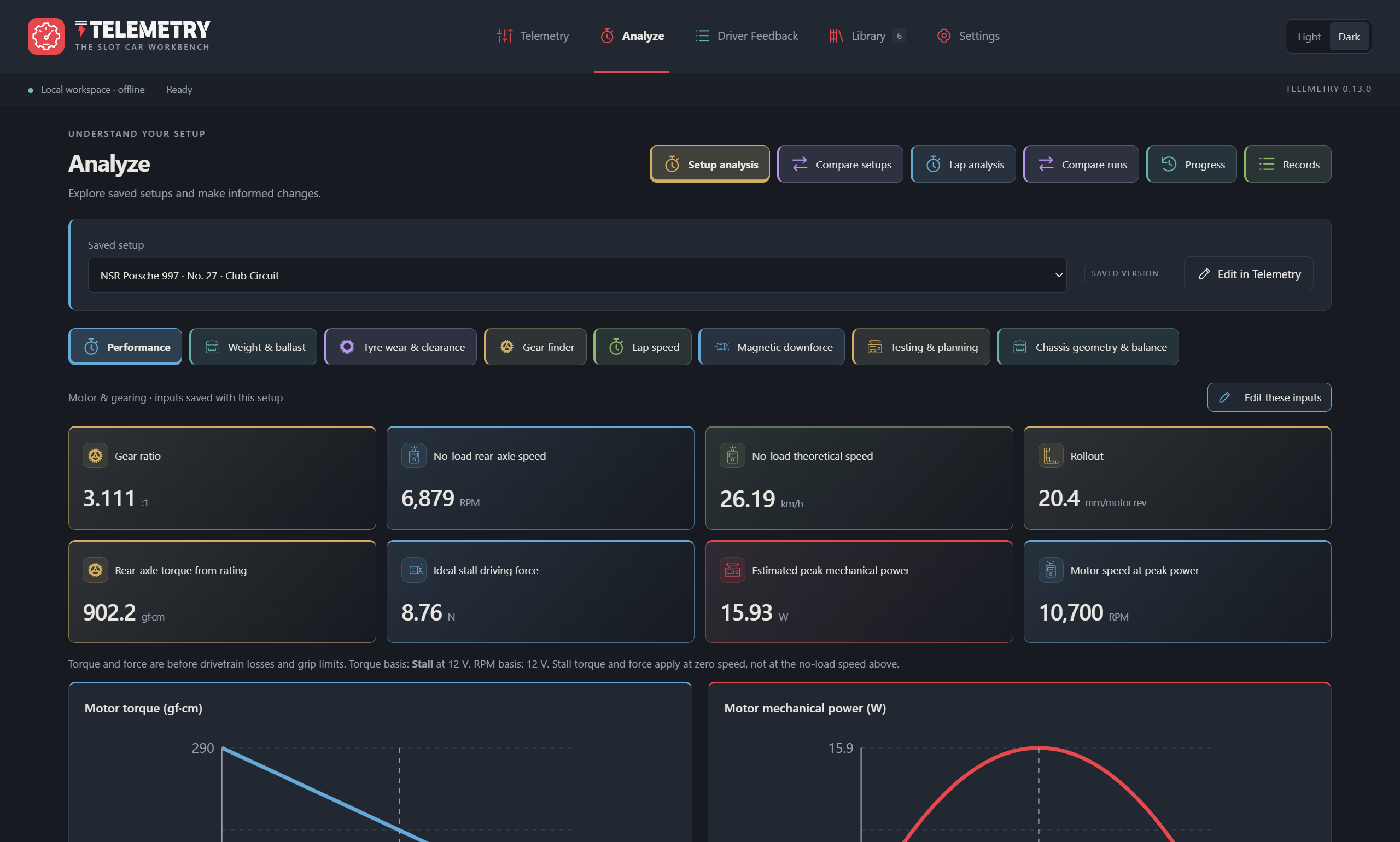
Understand your next change.
- SETUP EXPLORATION
Explore your setup
Work through gearing, motor, tyre and weight calculations.
- LAP ANALYSIS
Read the laps
Compare recorded runs and follow changes in pace and consistency alongside the captured setups.
- REPORTS TO SHARE
Share what you discovered
Export a comparison report that friends can read in their browser, with statistics, observations and setup differences. How sharing works →
Take a look around Telemetry
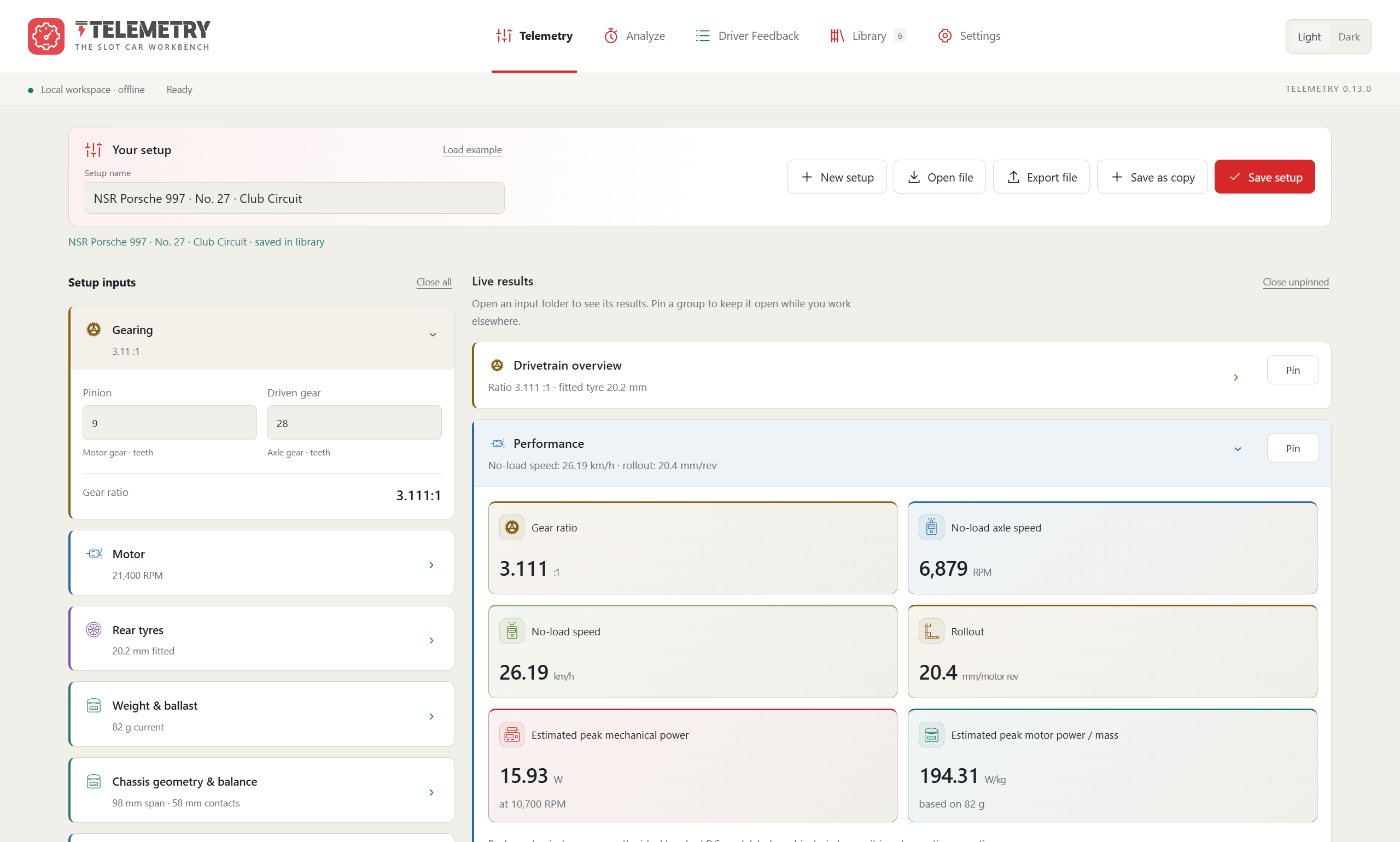
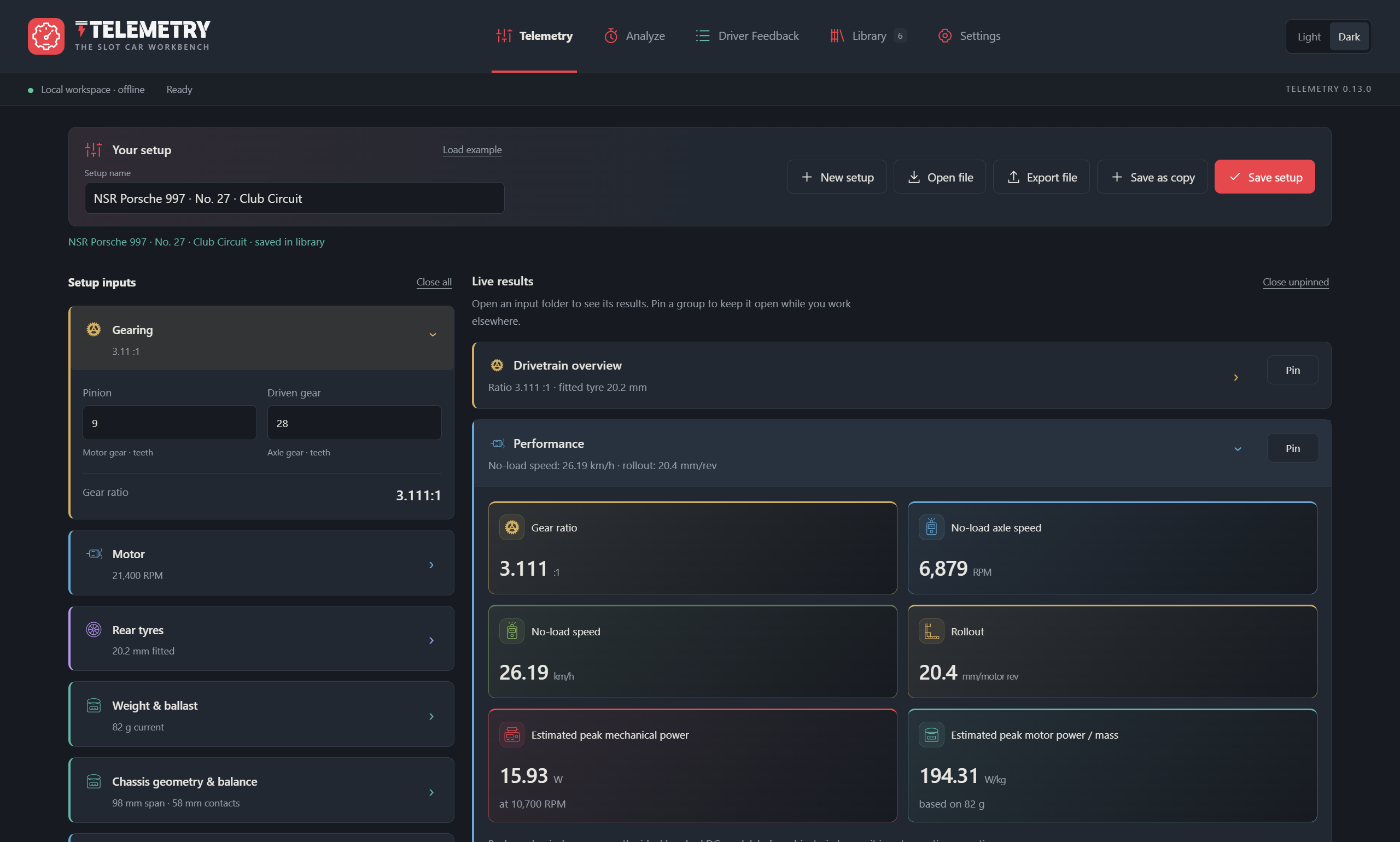
Your setup and lap data side by side, ready to explore.
What will you do with Telemetry?
Choose a topic. Open a feature to see how it works.
Start with how the car feels
Start with what the car does, then decide what to check.
Guided Driver Feedback
Work through handling symptoms such as sliding, tipping, hopping or inconsistent braking, with optional measurements and targeted follow-up questions.
Suggested checks and tests
Explore possible causes, ballast, gearing or magnetic options, with trade-offs and a practical test to try next.
Record what helped
Mark checks as looking OK, a problem or uncertain, then record whether a test improved, preserved or worsened the behaviour of that setup.
Chassis geometry
Measure the guide-to-rear-axle triangle and inspect a scale drawing, angles and geometry ratios.
Guided weighing
Use supported axle, guide-and-rear or individual-rear-wheel weighing methods, with repeated readings and total-mass checks.
Static balance and ballast
Explore load distribution and centre of gravity, then plan added, removed or moved ballast separately from your measured setup.
Gearing, tyres and motor performance
Understand how your measurements affect the setup.
Live workbench
Enter the measurements you have and see gear ratio, axle RPM, rollout, theoretical speed and supported torque or power results update.
Motor torque and power curves
Explore ideal brushed-DC curves and move a shared operating-point slider when matching-voltage motor ratings and stall torque are available.
Gear finder
Search pinion and driven-gear ranges for rollout targets or tyre-size compensation, with candidate combinations to check for physical fit.
Tyre preparation and life
Explore diameter, clearance, left/right wear and remaining tyre life using your own measured wear rate.
Magnetic pull measurements
Record repeated pull readings, inspect their mean and range and compare static magnetic load with optional class limits.
Measured clearance curves
Interpolate between measured magnetic-pull and clearance points, and explore the effect of tyre wear within that measured range.
Test one change at a time
Plan one change, test it and keep the evidence.
Visual ballast planning
Click or drag ballast positions on a schematic, try target rear loads and keep the plan separate from a measured baseline.
A-B-A comparisons
Return to a baseline after a change to inspect drift, using frozen setup snapshots to keep each test’s configuration clear.
Electrical losses
Use loaded DC measurements to explore voltage drop, resistance and power loss through the electrical path.
Motor test records
Record force and lever-arm measurements to calculate torque, power and supported efficiency estimates.
Race strategy calculations
Explore race duration, incidents, pit-stop costs and the laps needed to recover lost time.
Class limits and margins
Compare supported setup measurements with limits and see how much margin remains.
Compound gears and rotating mass
Explore compound ratios, spur-gear geometry and the equivalent inertia of rotating components.
Coast-down and measurement bounds
Analyse measured speed/time traces, distance and deceleration, or inspect how measurement ranges affect supported calculations.
Learn from recorded laps
Find the pace and consistency behind a single fast lap.
Type or paste lap times
Bring times from a timer, spreadsheet or notebook in supported seconds or minute-and-second formats, then review the imported laps.
Read results from Paddock
Connect to a Paddock host to read finalised Timing results, including supported corrections and withdrawals, and analyse imported runs offline.
Pace and consistency
Inspect best eligible laps, median pace and interquartile spread, with rolling pace to reveal changes through a run.
Stints and uninterrupted runs
Compare opening and closing pace and best continuous five-lap sequences, with gaps and excluded laps breaking the sequence.
Pit and invalid lap review
Keep excluded laps visible in the record while leaving genuine slow laps in the analysis unless you mark them otherwise.
Compare lap progression
Overlay runs and review pace differences alongside driver, track, lane and condition compatibility.
Progress and local records
Follow median pace, best laps and consistency over time, with the recorded setup changes and eligible local records for context.
Save, compare and share your work
Keep useful configurations and share what you have learned.
Setup Library
Name, search, sort and annotate saved configurations, then load, rename or save a copy for a new experiment.
Setup comparisons
See absolute and percentage differences between saved setups, with neutral trade-offs rather than treating every increase as an improvement.
Share a setup
Export an individual setup for another user to open, or transfer a setup library through its import/export workflow.
Portable comparison reports
Export a self-contained HTML comparison that another person can open, read and print without your database.
Drafts and separate backups
Keep your working draft automatically and use the separate setup and lap-data backup workflows to protect saved work.
Calculations explained
Read formula examples and assumptions, and keep useful results pinned while collapsing inputs you are not changing.
No matching features.
Try another word or choose a topic to keep exploring.
Telemetry analyses measurements and recorded laps; it does not perform live lap timing. Calculations and handling suggestions depend on the measurements and assumptions you provide.
Get SlotForge Telemetry.
Free, with no account or sign-up. Choose your operating system; downloads come directly from the official GitHub release.
v0.14.0 · Released 17 Nov 2026
Telemetry for Windows
Choose the installer for regular use, or the portable app to run it without installing. Keep the portable app in a permanent folder.
First launch: seeing a warning?
If Windows shows “Windows protected your PC”, choose More info and then Run anyway. This appears for new apps that are not yet widely downloaded.
Telemetry for macOS
Choose the build matching your Mac, open the DMG and drag the app to Applications.
First launch: seeing a warning?
If macOS says the app can’t be opened, open System Settings → Privacy & Security, scroll down and choose Open Anyway. You only need to do this once.
Telemetry for Linux
Choose a package matching your processor. Open the DEB with your package installer, or allow the AppImage to execute before opening it.
First launch: seeing a warning?
For an AppImage, allow it to run as a program first: right-click → Properties → Permissions, or chmod +x in a terminal.
Getting started.
Choose a package, follow the guide and make it yours.
- Choose your downloadSelect an available package for your operating system and processor.
- Follow the installation guideUse the app’s platform-specific instructions for the first launch.
- Start your first projectEnter the pinion, driven gear and rear tyre diameter. Save a setup, make one change and compare.
Before you get started.
Where are my files saved?
Your draft, saved setups and lap libraries are stored on this computer. Setups and lap data have separate backup workflows; follow the guide for both.
How do I update the app?
Back up your data, close the app and follow the update instructions for your platform. Read the release notes before replacing an installation.
Installation and update guidance ↗Where can I get help or report a problem?
Read the Telemetry documentation, or report your operating system, app version and the steps that caused the issue.
Report a Telemetry issue ↗