


SlotForge Livery
Plan paint schemes, stripes, race numbers and decals on editable 2D car templates.
- Free
- v1.4.0
- Windows · macOS · Linux
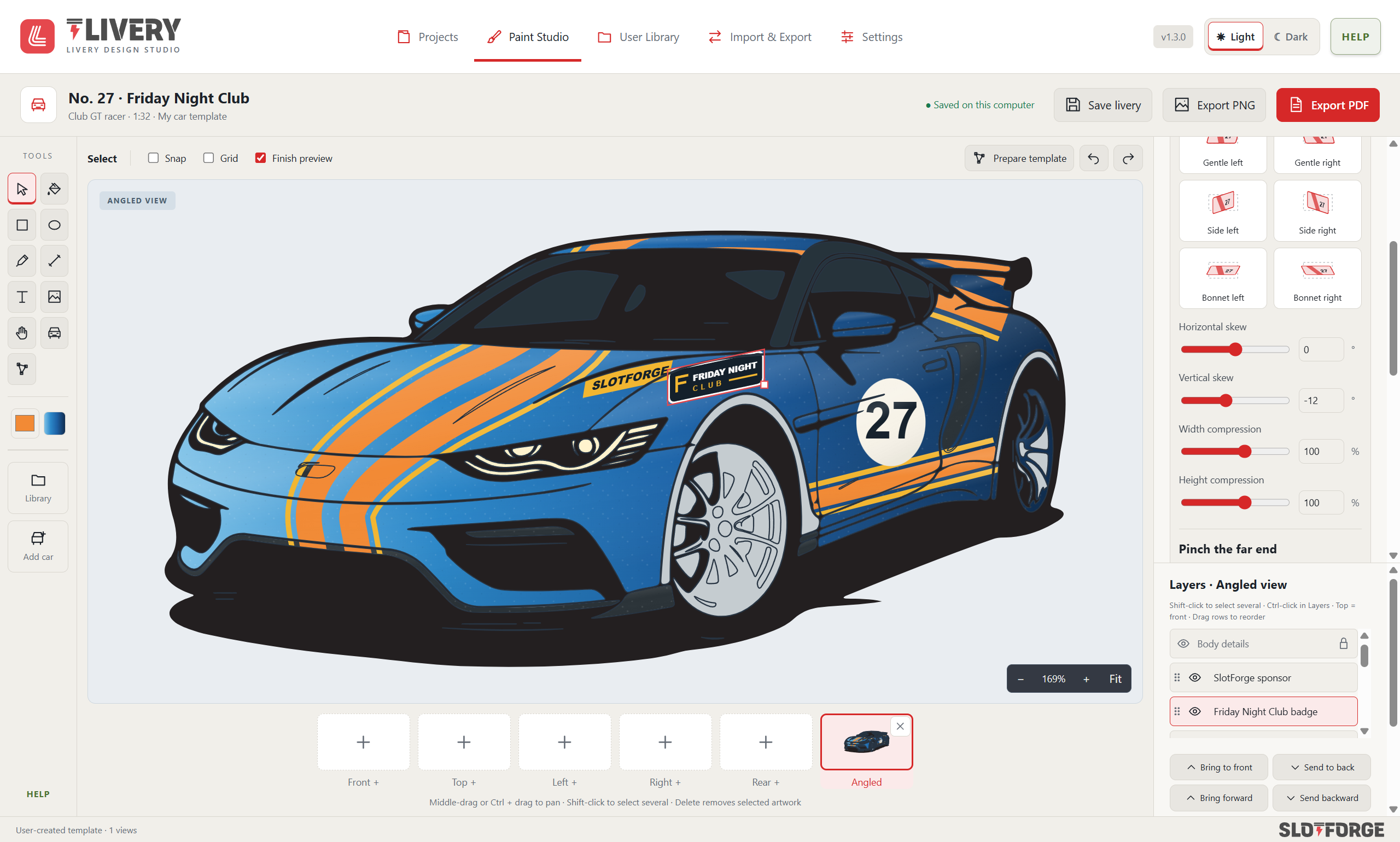
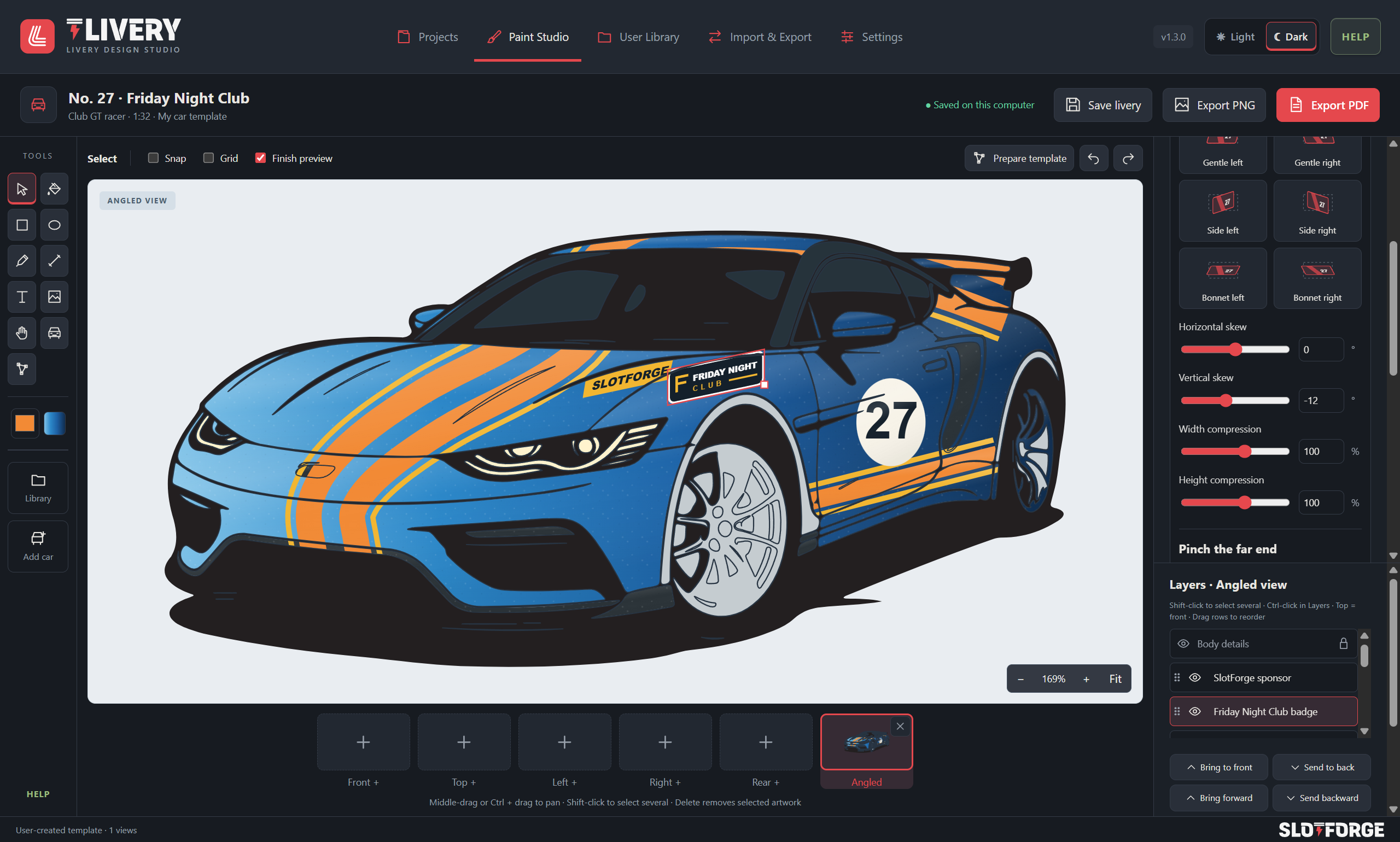
Give your car its own identity.
- YOUR TEMPLATE
Start with a template
Work on editable 2D car templates.
- YOUR COLOURS
Make it your own
Explore colours, stripes, race numbers and decals.
- EDITABLE PROJECTS
Give your design a next chapter
Share templates, liveries or a complete editable project. A friend imports a copy and takes it in a new direction. How sharing works →
Take a look around Livery
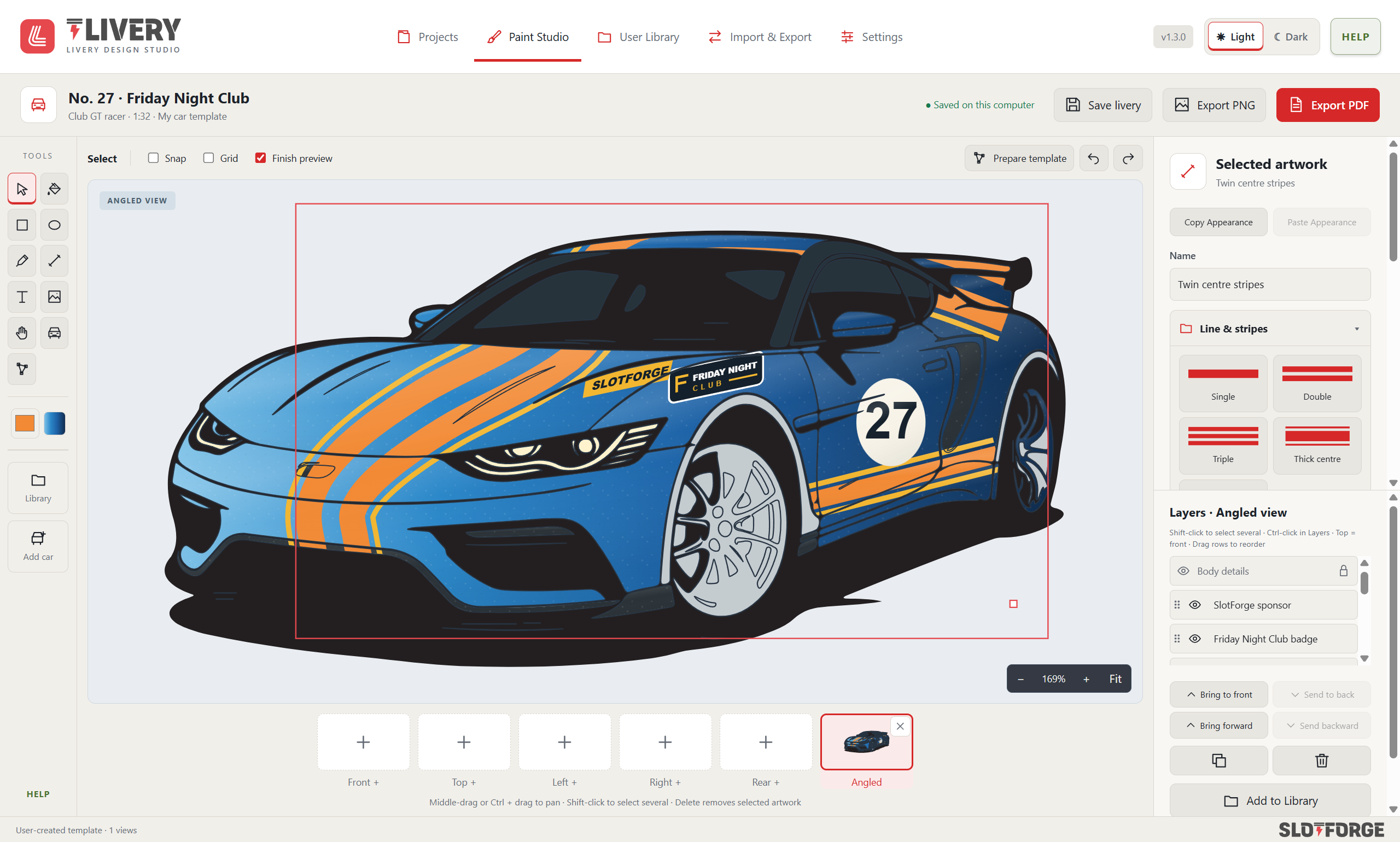
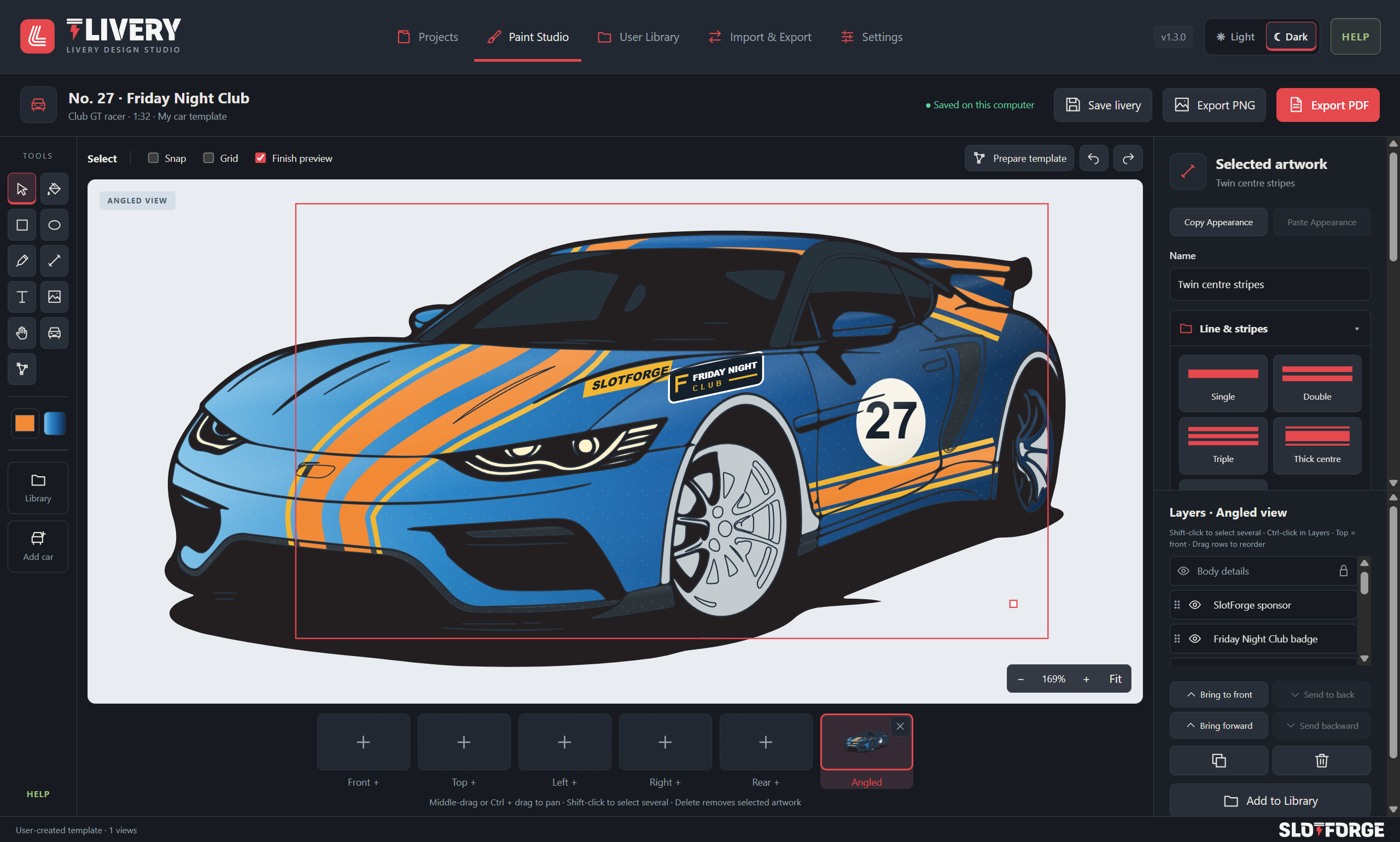
Paint stripes, numbers and sponsors on your car, with every layer editable.
What will you do with Livery?
Choose a topic. Open a feature to see how it works.
Turn a car view into a template
Prepare a car view once, then use it for many designs.
Vector and photograph imports
Prepare SVG, EPS or supported vector PDF artwork, choosing a PDF page, or use PNG, JPEG and WebP photographs for manual tracing.
Six independent car views
Build front, top, left, right, rear and angled views as separate parts of a project, each with its own prepared artwork.
Paintable areas and labels
Select enclosed areas or box-select several, then label bodywork, windows, lights, wheels, tyres, trim, interior and chassis.
Recover small and enclosed areas
Bring back filtered small shapes or enclosed white areas, and trace missing regions by hand before painting.
Protect the reference details
Keep selected artwork as reference only, or use preparation roles to distinguish bodywork, protected details and hidden elements.
Reusable car templates
Save prepared views in your library and return to template preparation when the design needs another paintable area.
Paint a scheme with character
Build a distinctive scheme from colour, curves and finishes.
Whole panels or individual areas
Apply a colour to an entire labelled part of the car or work on individual regions for more detailed schemes.
Multi-stop gradients
Blend two to eight colour stops and adjust their positions, direction and strength.
Finish previews
Explore matte, satin and gloss appearances with metallic or pearl options, and toggle the finish preview while checking the artwork.
Paint references and notes
Keep the chosen paint references and workshop notes alongside the visual design.
Shapes and Bézier curves
Create rectangles, ellipses and freeform colour blocks, then refine their anchors and handles.
Lines, pinstripes and racing stripes
Draw open lines with controlled thickness and end caps, or use single, double and triple stripes with adjustable colours, widths and gaps.
Decals, lettering and race numbers
Add the sponsors, numbers and details that make it yours.
Import your artwork
Place graphics with transparency, including supported SVG, EPS and PDF artwork, then resize and rotate them on the car view.
Bring designs from Decals
Open .sfdecal packs or .sfsheet files, select individual decals or groups and add them to your library or place them on a view.
Separate artwork from a sheet
Select crop regions from an SVG or PDF sheet, remove a plain white background where suitable and reuse the chosen graphics.
Text and race numbers
Create lettering and numbers with your chosen typeface, colour and position.
Custom fonts
Load TTF, OTF, WOFF or WOFF2 fonts for the project without installing them into the operating system.
Fit and organise the design
Refine the placement and keep complex artwork manageable.
Perspective fitting
Use skew, compression and pinch presets or fine adjustments to fit artwork to an angled 2D car view.
Layers and editable groups
Reorder layers, select several objects and group them while retaining access to the individual children.
Controlled resizing
Scale groups proportionally with handles, exact fields or percentages, including fitted artwork and stripe gaps.
Copy appearance
Reuse an object’s appearance on other elements to keep the design consistent.
Canvas tools
Pan and zoom, use the grid and snapping, and experiment with Undo/Redo while positioning details.
Reuse, exchange and take it to the workshop
Reuse your designs, exchange editable projects and take a guide to the workshop.
Searchable User Library
Search, sort and rename templates, liveries, images, fonts and artwork in one place.
Reusable artwork groups
Save useful combinations to the library and bring them into another project without rebuilding them.
Try a livery on another car
Reuse a saved design on a different template, then adjust placement to suit the new body shape.
Share editable .sfpaint packages
Export selected library items or a complete project with its template and artwork. Recipients import independent copies.
Workshop PDF
Export car views, paint references and notes as a practical visual guide for preparing the model.
Transparent PNG export
Export a chosen view at 1,000–4,000 pixels with an optional finish preview and transparent background.
Local projects and backups
Keep projects in a local library and export separate backups or selected packages for moving and protecting your designs.
No matching features.
Try another word or choose a topic to keep exploring.
Livery is a 2D design tool. Finish previews and workshop PDFs are visual guides, not calibrated paint matches or automatic 3D wrapping.
Get SlotForge Livery.
Free, with no account or sign-up. Choose your operating system; downloads come directly from the official GitHub release.
v1.4.0 · Released 17 Nov 2026
Livery for Windows
Choose the installer for regular use, or the portable app to run it without installing. Keep the portable app in a permanent folder.
First launch: seeing a warning?
If Windows shows “Windows protected your PC”, choose More info and then Run anyway. This appears for new apps that are not yet widely downloaded.
Livery for macOS
Choose the build matching your Mac, open the DMG and drag the app to Applications.
First launch: seeing a warning?
If macOS says the app can’t be opened, open System Settings → Privacy & Security, scroll down and choose Open Anyway. You only need to do this once.
Livery for Linux
Choose a package matching your processor. Open the DEB with your package installer, or allow the AppImage to execute before opening it.
First launch: seeing a warning?
For an AppImage, allow it to run as a program first: right-click → Properties → Permissions, or chmod +x in a terminal.
Getting started.
Choose a package, follow the guide and make it yours.
- Choose your downloadSelect an available package for your operating system and processor.
- Follow the installation guideUse the app’s platform-specific instructions for the first launch.
- Start your first projectAdd a car view, import artwork, label its paintable areas and try a base colour.
Before you get started.
Where are my files saved?
Projects and library items are stored locally in SQLite. Export separate backups; larger collections can be shared or backed up in selected packages.
How do I update the app?
Back up your data, close the app and follow the update instructions for your platform. Read the release notes before replacing an installation.
Installation and update guidance ↗Where can I get help or report a problem?
Read the Livery documentation, or report your operating system, app version and the steps that caused the issue.
Report a Livery issue ↗