


SlotForge Decals
Size and arrange your artwork into decal sheets, then export a PDF for printing.
- Free
- v0.3.0
- Windows · macOS · Linux
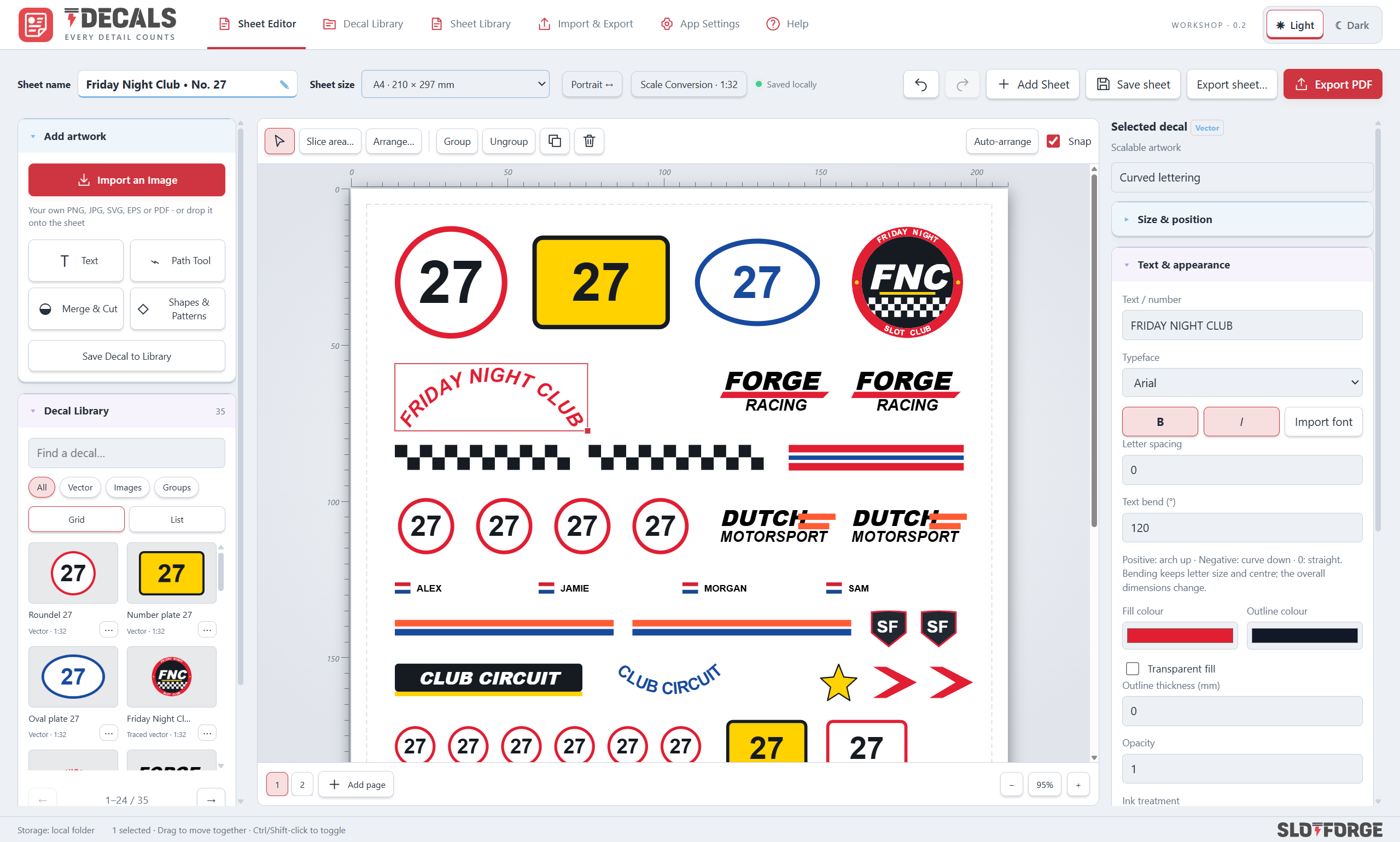
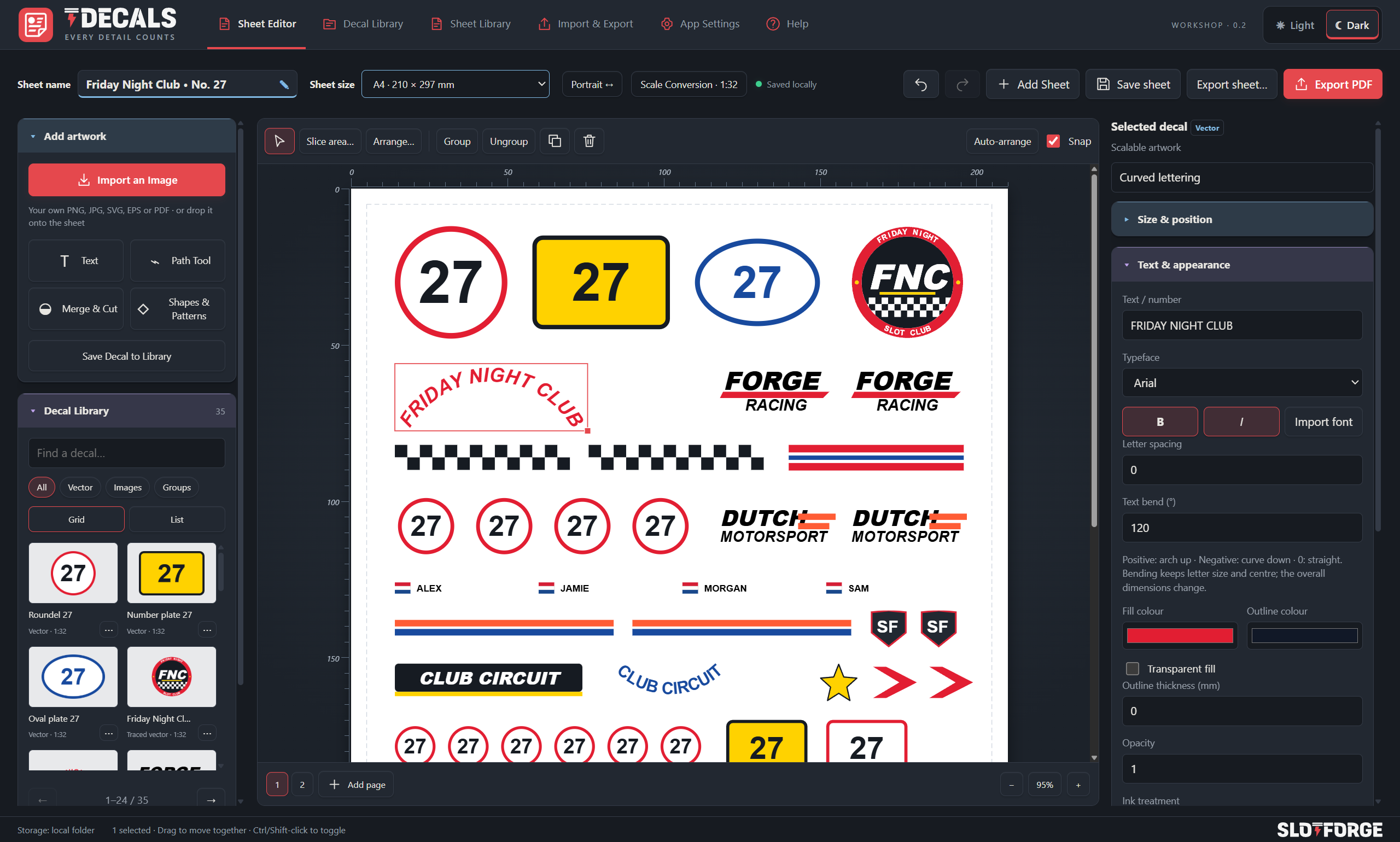
From artwork to decal sheet.
- YOUR ARTWORK
Bring your artwork
Organise artwork for your slotcar projects.
- READY TO PRINT
From sheet to model
Size and arrange your artwork, check a sizing proof and export a PDF ready for printing at actual size.
- EDITABLE SHEETS
Make it. Share it.
Exchange editable sheets and saved decal packs so another builder can resize, rearrange and make them their own. How sharing works →
Take a look around Decals
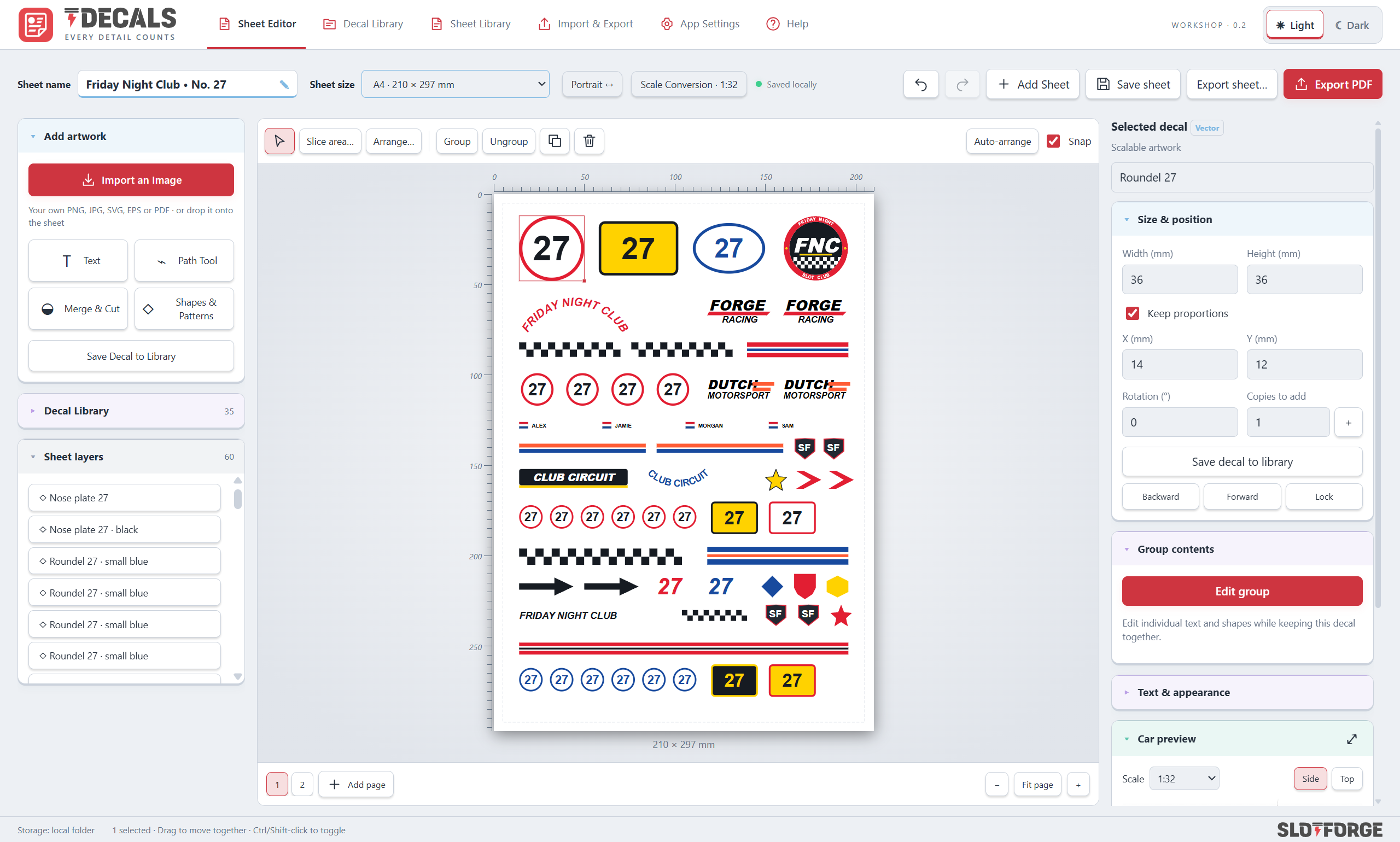
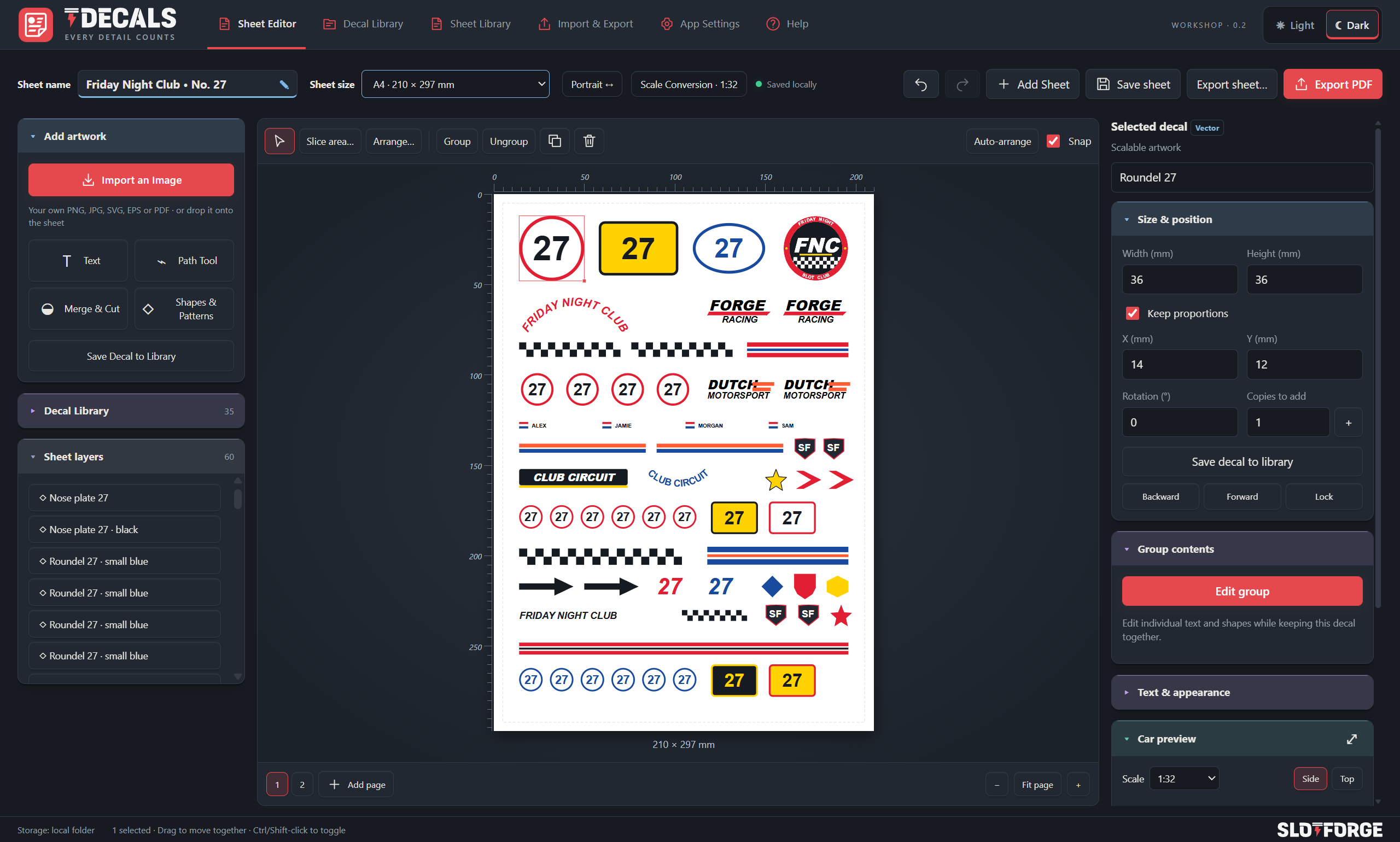
A full A4 sheet of decals at true model size, with layers, rulers and margins.
What will you do with Decals?
Choose a topic. Open a feature to see how it works.
Prepare the artwork you want
Turn your source graphics into artwork ready for a decal sheet.
Image and vector imports
Bring PNG, JPEG, WebP, SVG, EPS and PDF artwork, with page selection for multi-page PDFs and supported vector detail retained.
Crop and clean backgrounds
Crop images, remove simple edge-connected backgrounds and trim transparent edges, with the original available to restore.
Flat-colour vector tracing
Trace suitable logos into vectors, compare the result with the original and adjust colour, detail and transparency.
Recolour or remove traced shapes
Refine a trace by changing colours or removing shapes, then keep it as a separate copy or replace the current artwork.
Vector artwork cleanup
Select and remove unwanted paths, such as a white background, while retaining white details you have not selected.
Silhouettes and cut-outs
Build an adjustable outer silhouette with internal cut-outs while keeping the source artwork available.
Create your own racing graphics
Make your own lettering, number plates and racing patterns.
Editable text and curved lettering
Set lettering, fonts and spacing, or bend text along an arc for badges and curved designs.
Custom fonts
Use imported fonts in your artwork and retain supported font data when sharing editable sheets and decal packs.
Shapes and number plates
Draw precisely sized shapes, stars, arrows, shields and roundels, including oval or rectangular number plates.
Racing stripes
Build one to twelve stripes with adjustable widths, gaps and alternating colours as an editable group.
Checkerboards
Choose rows, columns and cell dimensions for a checkerboard that stays editable.
Editable paths and curves
Draw freehand or place precise points, then adjust Bézier handles, corners and inserted or deleted points later.
Merge, cut and overlap
Combine supported native filled shapes with union, subtraction, intersection or exclusion, including holes and curves.
Get the printed size right
Get the dimensions right before you use decal paper.
Exact dimensions in millimetres
Set the printed width and height with linked proportions or independent dimensions.
Convert between model scales
Resize from known original dimensions and scales, applying the change to a selection or complete artwork.
Side and top car previews
Try decals at physical size on a car reference, using actual car dimensions or an uploaded image.
Separate placement from printing
Experiment with positions on the car preview while keeping the print-sheet arrangement separate; size changes remain connected.
Plain-paper sizing proofs
Export a proof with labelled 100 mm and 50 mm bars and print at Actual size / 100% to check the result on the model.
Build a practical decal sheet
Arrange more artwork neatly without changing its printed size.
Paper sizes and multiple pages
Use A4, A5 or 4 × 6-inch photo paper in portrait or landscape, retaining artwork dimensions across pages.
Selection, groups and layers
Select multiple decals, group or lock elements, control their order and use Undo/Redo while arranging the sheet.
Repeat, align and distribute
Create rows and columns with chosen gaps, line up selected decals and move artwork between pages.
Auto-arrange without resizing
Pack decals inside the chosen margins and add pages as needed while preserving their physical sizes.
Rulers, margins and print checks
Inspect placement, cut gaps, margin problems, low-resolution artwork and white-ink settings before export.
Slice, export and prepare to print
Prepare a whole sheet or just the area you need.
Slice part of a sheet
Select an exact millimetre rectangle, clip the artwork or include whole intersecting decals, and keep the original sheet unchanged.
Save a slice as reusable artwork
Add a selected region to the decal library as a group, retaining supported fonts and white-ink settings.
Print an area or export a crop
Print a selected area in its original paper position or export a cropped PDF without rescaling the artwork.
PDF and SVG output
Export PDFs at the intended physical page dimensions, preserve supported vectors and export individual artwork as SVG.
White-ink separation
Prepare a named white separation with per-decal backing or white-only options for a compatible print workflow. Physical printer validation is still pending.
Share designs and build your library
Build a reusable collection and exchange designs with other makers.
Decal and sheet libraries
Organise reusable artwork and finished sheets with names, tags, search, sorting and grid or list views.
Independent working copies
Edit artwork on a sheet without changing its saved library master, so a reusable design stays ready for other projects.
Share .sfdecal packs
Bundle reusable decals for another user to import, with supported artwork and font data included.
Share .sfsheet projects
Exchange selected sheets or pages with their paper settings, physical dimensions and artwork for further editing.
Use your artwork in Livery
Import shared Decals packs or sheets into Livery to try individual graphics on a car design before preparing the model.
Keep your work recoverable
Return to earlier work and keep your saved designs recoverable.
Working-sheet autosave
Keep current work automatically and explicitly save sheets to the library when you want to retain them there.
Version history
Preview an earlier saved version and recover it as a separate copy without overwriting the current design.
Complete database backups
Export a .sfdb backup containing saved sheets, artwork, fonts, history and settings for recovery or moving computers.
No matching features.
Try another word or choose a topic to keep exploring.
Get SlotForge Decals.
Free, with no account or sign-up. Choose your operating system; downloads come directly from the official GitHub release.
v0.3.0 · Released 17 Nov 2026
Decals for Windows
Choose the installer for regular use, or the portable app to run it without installing. Keep the portable app in a permanent folder.
First launch: seeing a warning?
If Windows shows “Windows protected your PC”, choose More info and then Run anyway. This appears for new apps that are not yet widely downloaded.
Decals for macOS
Choose the build matching your Mac, open the DMG and drag the app to Applications. Requires macOS 15 or newer.
First launch: seeing a warning?
If macOS says the app can’t be opened, open System Settings → Privacy & Security, scroll down and choose Open Anyway. You only need to do this once.
Decals for Linux
Choose a package matching your processor. Open the DEB with your package installer, or allow the AppImage to execute before opening it.
First launch: seeing a warning?
For an AppImage, allow it to run as a program first: right-click → Properties → Permissions, or chmod +x in a terminal.
Getting started.
Choose a package, follow the guide and make it yours.
- Choose your downloadSelect an available package for your operating system and processor.
- Follow the installation guideUse the app’s platform-specific instructions for the first launch.
- Start your first projectChoose a paper size, import artwork, set its printed dimensions and make a plain-paper sizing proof.
Before you get started.
Where are my files saved?
Sheets, artwork, fonts and history are stored separately from the app in your Documents workspace. Use Backup & Recovery for complete backups.
How do I update the app?
Back up your data, close the app and follow the update instructions for your platform. Read the release notes before replacing an installation.
Installation and update guidance ↗Where can I get help or report a problem?
Read the Decals documentation, or report your operating system, app version and the steps that caused the issue.
Report a Decals issue ↗